Module 1 · Chapter 1 · Core
Welcome to Scientific Programming
Learn what scientific programming means, how Python and Jupyter work together, and how to create, test and preserve your first reproducible scientific notebook.
Open this lesson in the Academy workspaceLearning pathway
You already know
You already know how scientists ask questions, distinguish observations from interpretations and judge whether evidence is relevant. You do not need programming knowledge. Your scientific experience is the starting point.
In this lesson
You will turn one ecological question into a small, inspectable notebook record. You will learn what programming and scientific programming mean, how Jupyter, a notebook file, Python and the kernel divide their roles, how the computer executes an instruction and how to preserve the result for another person to inspect.
Why this comes now
Every later table, map, raster and model depends on instructions being executed in a known order and on the scientist separating computational success from scientific validity. Learning that distinction before variables or datasets prevents code from becoming an unexplained sequence of commands.
You will use this later
Lesson 2 adds scientific values to the notebook. Lesson 6 develops systematic debugging. Lesson 8 introduces the published Baltic coastal-meadow table. Every later Academy project uses the same question → instruction → output → validation → interpretation cycle.
1. Scientific question and computational method
Learning outcome
By the end of this lesson, you can explain scientific programming; distinguish a scientific question from a computational instruction; explain the roles of Jupyter, a notebook file, Python and the kernel; distinguish Markdown and code cells; run simple instructions in order; predict output before execution; recognise and repair a simple SyntaxError; restart and clean-run a notebook; preserve it for inspection; and explain why successful execution does not prove scientific validity.
Prerequisites: None. You do not need to know Python, files, folders, terminals or notebooks.
Why this matters
Core lesson How does a scientific question become something a computer can actually execute?
You have joined a research group studying Baltic coastal meadows. Across the module, your working question is:
How can field measurements help us describe and compare vegetation patterns across Baltic coastal meadow plots?

Scientific context, not lesson data. Photograph by Marko Vainu, 7 August 2013, Wikimedia Commons, CC BY-SA 4.0. The photograph is not part of the published Baltic coastal plant-traits dataset and no values are inferred from it here.

Before thinking about code, inspect the landscape. What would need to be defined before a computer could compare its vegetation: the observation unit, field protocol, dates, locations, measurements, quality checks, or something else? The computer cannot choose these scientific meanings for you.
A scientific question is not yet a computational method. To analyse it, a scientist must turn decisions into instructions: which data to inspect, which values to compare, what to calculate and how to check the result.
Programming means writing instructions a computer can execute. Scientific programming means using explicit, repeatable computer instructions to investigate scientific evidence while keeping scientific judgement with the researcher.
The relationship is a cycle:
- The scientist asks a question.
- An analysis plan defines operations and checks.
- Notebook code expresses exact instructions.
- Python executes those instructions.
- The notebook records output, including errors.
- The scientist validates execution, data and method.
- The scientist interprets what the output means and does not mean.
- The evidence may lead back to a revised question or plan.
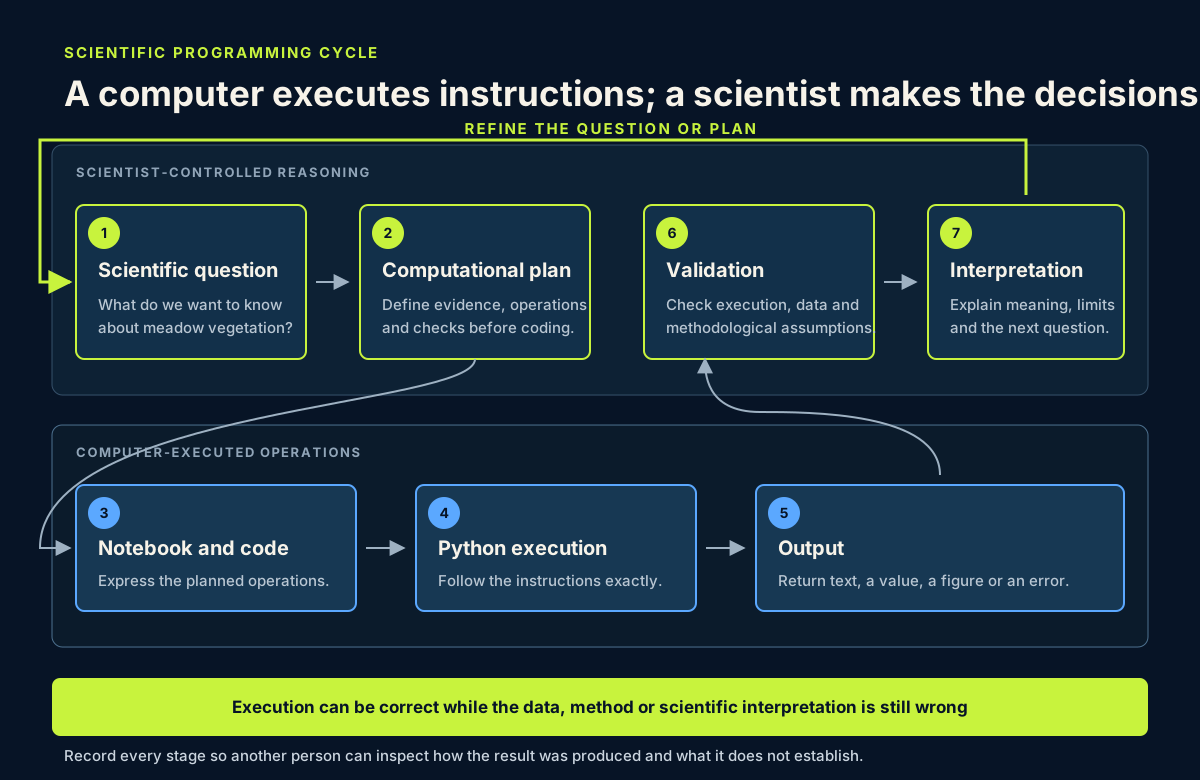
The arrows are not a guarantee of correctness. They make the reasoning inspectable. Code can execute exactly as written even when the wrong evidence was selected or the scientific question was translated badly.
Core lesson Write your own one-sentence definition of scientific programming in your private notes. Include both repeatable instructions and scientific judgement.
Learner action
Write one scientific question about Baltic coastal meadow vegetation that could eventually be investigated using field measurements and Earth Observation data. Do not try to write code yet.
2. Meet the notebook
A file is a saved digital item with a name. A Jupyter notebook is a file ending in .ipynb. It can keep the question, code, output and interpretation together, which makes the route from evidence to conclusion easier to inspect than a final Word report alone.
A notebook contains cells:
- A Markdown cell holds headings, explanations, predictions and interpretations. Running it formats the text.
- A code cell holds Python instructions. Running it sends those instructions to Python and returns output or an error.
Four names that beginners often mix up
- Notebook file: the saved
.ipynbrecord containing cells, saved output and metadata. - Jupyter: the interface that opens the file, displays cells and sends code to be run.
- Python: the programming language used to express the instructions.
- Kernel: the running Python process that executes code and temporarily remembers the current computational state.
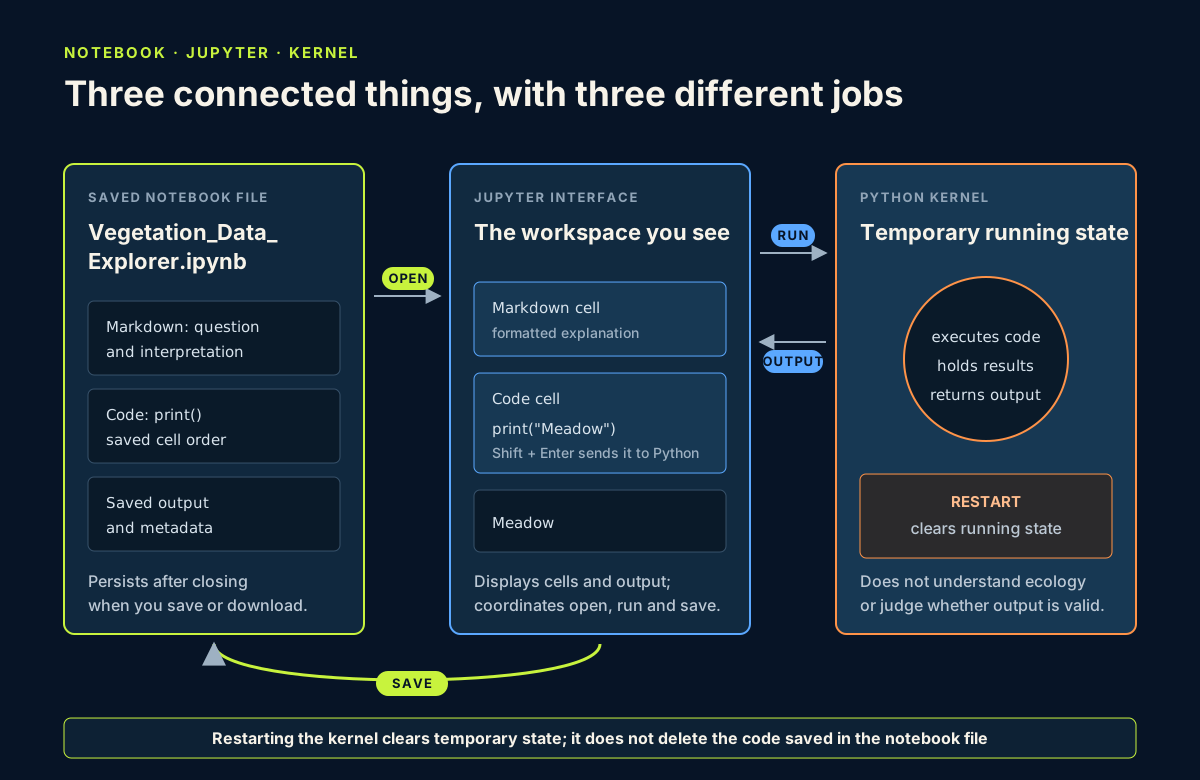
When you choose Save, Jupyter updates the notebook file. When you choose Restart Kernel, Jupyter clears the kernel's temporary running state. Your saved code remains in the notebook. When you choose Run All, Jupyter sends code cells to a fresh kernel in notebook order. These actions are related, but they are not interchangeable.
Choose the right scientific record
Different formats support different parts of professional work:
| Format | Best used for | Important limitation |
|---|---|---|
| Word or similar document | Polished narrative, review and final reporting | The calculation that produced a result is usually separate |
| Jupyter notebook | Developing an analysis while keeping question, code, output and interpretation together | Cells can be run out of order and hidden state can make a result difficult to reproduce |
| Python script | Repeatable processing that should run from beginning to end | Narrative and exploratory output require deliberate documentation |
The notebook is the right first instrument because it keeps beginner explanation beside executable evidence. It is not automatically superior to the alternatives. A mature project often uses notebooks for investigation, scripts for stable processing and a report for communication.
The kernel is the running Python process behind the notebook. When you run a code cell, Jupyter sends the cell to the kernel. The kernel reads instructions from top to bottom within that cell and stops if it reaches an instruction it cannot complete.
The kernel also preserves the consequences of cells you already ran until it is restarted. That flexibility helps exploration, but it can hide the order needed to reproduce a result. A professional notebook must therefore pass a clean-run test: restart the kernel, run every required cell from top to bottom and confirm that the result can be regenerated.
Download the starter notebook from the lesson resources below. Keep the downloaded file somewhere you can find again, then rename it exactly:
Vegetation_Data_Explorer.ipynb
Open it in JupyterLab, Jupyter Notebook, or your institution's current Jupyter environment. If you have no installed environment, Try Jupyter provides a browser workspace. Browser workspaces may be temporary, so always download your work before leaving.
Go deeper — why not install everything today? Professional projects often use separate environments and recorded package versions. Those practices matter, but installing and managing environments is not required for this first lesson. The module will introduce reproducibility in stages.
Learner action
Open the starter notebook. Find its title cell, one prediction field and one prepared code cell. Change the learner-name placeholder to your name or researcher identifier, then save.
3. Run the first instruction
The first prepared code cell contains:
print()
Before running it, predict what will appear: the word print, an error, or an empty-looking line. Record the prediction in the Markdown field directly above the code.
Now select the code cell and press Shift + Enter, or use the Run control.
print is a built-in Python function that sends information to the output area. The parentheses mean “run this function now”. Nothing appears inside the parentheses, so print() produces only a new line. The output looks empty, but Python still completed a valid instruction.
Code walkthrough
printis the function name.(opens the function call.- There is no value to display.
)closes the call.- The kernel executes the complete instruction and returns a line break.
Learner action
Under the output, add a Markdown sentence explaining why an empty-looking result can still show that an instruction ran.
4. Predict execution order
The next prepared code cell contains three instructions:
print("Vegetation Data Explorer")
print("Study system: Baltic coastal meadows")
print("Question: How does vegetation vary among field plots?")
Predict before running
In the prediction field, write the three lines in the order you expect them to appear. Then run the cell.
Expected output:
Vegetation Data Explorer
Study system: Baltic coastal meadows
Question: How does vegetation vary among field plots?
Python works from the first line to the third line. Each print(...) call contains a string: text between straight quotation marks. You will study strings formally in Lesson 2. For now, notice that the quotation marks tell Python where the text begins and ends; they are not shown in the output.
Scientific interpretation
Python displayed a research question, but it did not judge whether the question is answerable, whether the data are suitable or whether the wording is ecologically sound. Execution answers “Did the computer follow the instruction?” Interpretation asks “What does the result mean, and is the method scientifically defensible?”
Scientific note A precise output can still result from weak data, an unsuitable method or an unsupported assumption. Computational correctness and scientific validity must be checked separately.
Diagnose — it worked, but is it scientifically valid?
Imagine that Python displays:
Mean vegetation height = 42.7 cm
Which conclusion is justified?
- Vegetation is definitely 42.7 cm high.
- Python successfully displayed the supplied or computed value.
- Field sampling was scientifically valid.
- The measurement represents the entire coastal meadow.
Only the second statement follows from the output. To support the others, you would need evidence about the input values, units, sampling design, calculation, quality control, spatial and temporal scope, and uncertainty. Successful execution is one check in an evidence chain, not the scientific conclusion.
In two sentences, explain the difference between computational success and scientific validity in your notebook.
Learner action
Change only the final printed question so it matches the scientific question you wrote in Block 1. Predict the output order again, run the cell and confirm the lines remain in the expected sequence.
5. Cause and fix one error
Create a new code cell and deliberately type this incomplete instruction:
print("Baltic coastal meadow)
Run it. Python should report a SyntaxError because the opening quotation mark has no matching closing quotation mark. The error is information, not a judgement about your ability.
When code fails
- Read the final error line.
- Identify the referenced line.
- Compare names and punctuation.
- Change one thing.
- Run the cell again.
Add the missing straight quotation mark so the corrected cell becomes:
print("Baltic coastal meadow")
Run it again and keep the corrected output. Full debugging and notebook-state management will be taught in Lesson 6.
Common mistake: code in a Markdown cell
If print("Baltic coastal meadow") appears as formatted text instead of producing output, the instruction is probably in a Markdown cell. Change the cell type to Code and run it again.
Learner action
Add a Markdown note below the corrected cell. State what Python reported, which single character was missing and how you knew the fix worked.
6. Save and submit the notebook
Saving updates the notebook in its current workspace. Downloading creates a separate copy that you control. Use both actions:
- Confirm the notebook is named
Vegetation_Data_Explorer.ipynb. - Save it in Jupyter.
- Download a copy to a known folder on your computer.
- Reopen the downloaded copy if your environment allows it.
- Run the required cells from top to bottom and confirm that the corrected cell succeeds.
Guided practice
Complete the starter notebook's Markdown prompts: project title, researcher name, scientific question, predictions, first execution note and error correction note.
Then complete its handover check:
- Restart the kernel.
- Use Run All or run every required cell from top to bottom.
- Confirm the deliberately broken instruction has been replaced by the corrected version.
- Compare the regenerated output with your predictions.
- Record whether the notebook passed, and identify any cell that needed correction.
- Save and download the clean result.
This is your first QA/QC procedure. It checks execution order and preservation. It does not establish that the scientific question or future data are valid.
Independent challenge
Add one code cell with no more than three print() instructions. Display:
- your researcher name or identifier;
- one ecological feature you want to understand;
- one kind of Earth Observation evidence that might eventually help.
Predict the line order before running. After running, add two Markdown sentences: one identifies the executed instructions and output; the other identifies the scientific judgement that remains yours.
Finish with a professional scenario: imagine a colleague receives only this notebook. Add a Markdown note titled ### Handover note that tells them the question, which cells to run, what successful output looks like and what the output does not prove. Do not explain Python generally; explain how to inspect this specific scientific record.
Independent handover test
Close the notebook, reopen the downloaded copy and use only the visible instructions in the file. If you cannot reproduce the output without remembering an undocumented step, revise the notebook and repeat the test.
Learner action
Use the submission checklist shown below the lesson. Upload the renamed notebook and one screenshot, then add the requested written explanation in the submission panel.
7. Reflection and summary
Close the notes — 3-minute recall
Close or cover the lesson text. Without running code, answer from memory:
- What is scientific programming?
- When would you use a Markdown cell rather than a code cell?
- What does the kernel do?
- Why restart the kernel and run the notebook from top to bottom?
- Why does successful code execution not prove a scientific conclusion?
Then reopen the lesson, check your answers and correct only what you could not explain accurately.
Reflection
Write short answers in your private notes:
- What is scientific programming, in one sentence?
- When should you use a Markdown cell, and when should you use a code cell?
- What did the kernel do when it reached the incomplete string?
- Why does a successfully executed cell not prove that a scientific claim is valid?
- Where is your downloaded notebook stored?
- When would a script or a report be a better format than a notebook?
Portfolio artifact
Artifact 01 — Scientific Notebook Foundation
Your Vegetation_Data_Explorer.ipynb now contains a project title, a researcher identifier, a scientific question, predictions, executable Python instructions, a corrected SyntaxError, an interpretation, a clean-run QA record, a handover note and a reflection on scientific interpretation. It is the first checkpoint in Portfolio Project 1 — Vegetation Data Explorer, not a separate mini-project. Keep this notebook: Lesson 2 extends it rather than replacing it.
Summary
You can now describe scientific programming as a partnership between explicit computation and scientific judgement. You can choose why a notebook is appropriate, use its two essential cell types, run simple instructions in order, correct one syntax error and preserve a clean, inspectable record. Lesson 2 will add scientific values and names without discarding this foundation.